# Typewriter Effect in React
> Learn how to create a typewriter effect in React with this step-by-step guide. Engage your audience with nostalgic charm
- URL: https://pulkit.blog/typewriter-effect-in-react/
- Published: April 28, 2024
- Tags: React, Typewriter Effect, React Hooks, UI Components, Frontend
Adding interesting features to your website can grab your audience's attention in today's fast digital world. The typewriter effect, like old typewriters, is a delightful touch that can make your web content more lively. In this guide, we will show you how to create this nostalgic effect using React, making your website more dynamic and engaging for users.
**Prerequisites:**
- Node.js and npm (or yarn) are installed on your system.
*For this walkthrough, you'll be creating a React project using Vite and Tailwind CSS for styling. While these are my preferred choices, you can absolutely tailor the setup to your existing project or preferences.*
## Setting up the App
- Create an empty React project
```plaintext
pnpm create vite@latest react-typewiter -- --template react
```
- Install Dependencies
```plaintext
cd react-typewiter
yarn
```
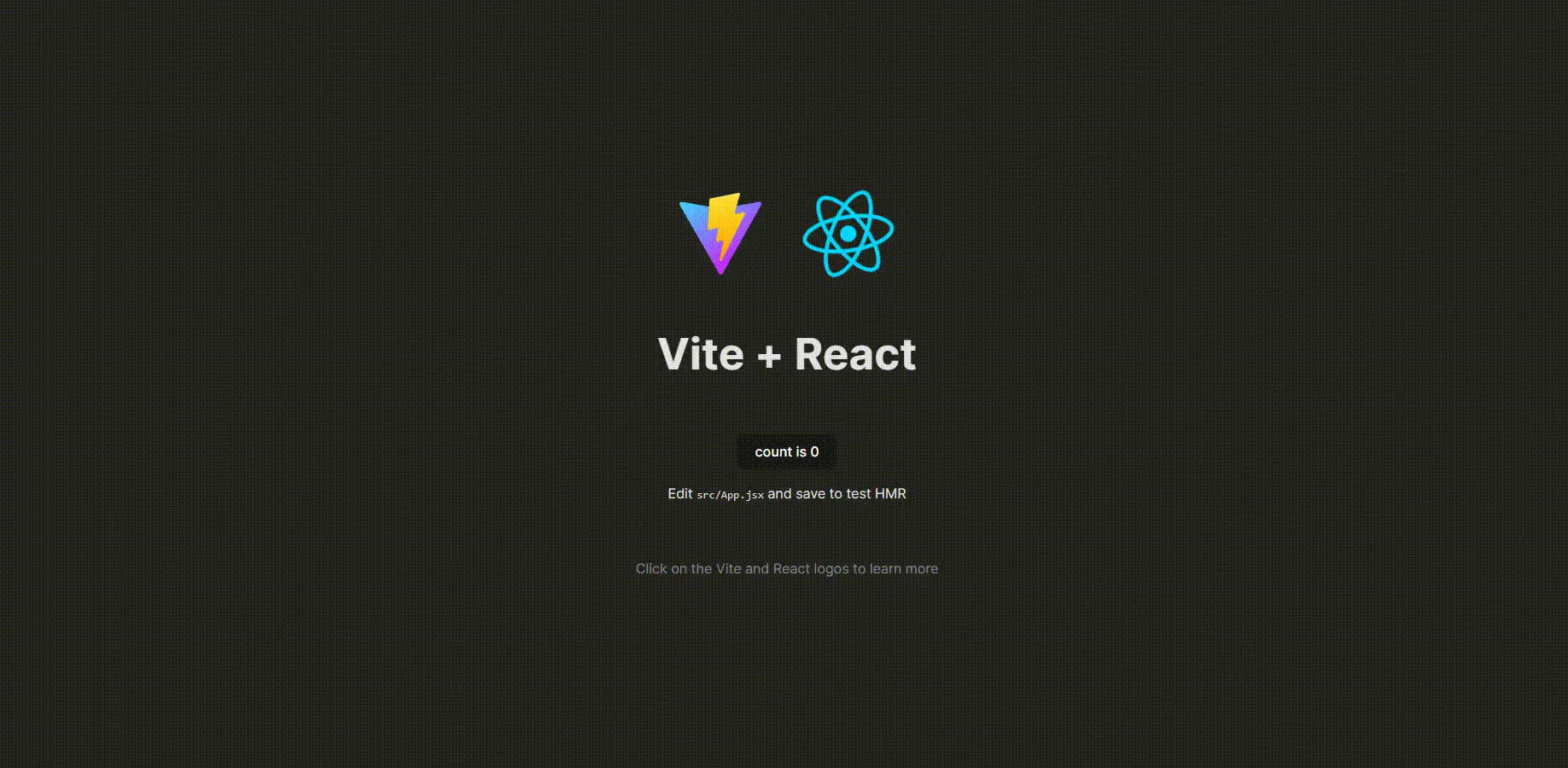
- Start the development server:
```plaintext
yarn dev
```
## **Creating the Typewriter Component**
*src/components/Typewriter.jsx*
```jsx
import PropTypes from "prop-types";
const Typewriter = ({ text }) => {
return {text}
;
};
export default Typewriter;
Typewriter.propTypes = {
text: PropTypes.string.isRequired,
};
```
*Import Typewriter Component*
```jsx
import Typewriter from "./src/components/Typewriter";
function App() {
return (
);
}
export default App;
```
## Typewriter Logic
Initialize a useState index for maintaining the typed words
```jsx
const [currentIndex, setCurrentIndex] = useState(0);
```
Now to maintain the `currentIndex` to go from 0 to `text.length` , Introduce a useEffect hook. What could be an easy way to do that? Of course, a setInterval could do the job.
```jsx
useEffect(() => {
const interval = setInterval(() => {
setCurrentIndex((prevIndex) => {
if (prevIndex === text.length) {
clearInterval(interval);
return prevIndex;
}
return prevIndex + 1;
});
}, 100);
return () => clearInterval(interval);
}, [text]);
```
But we're not utilizing the currentIndex in the Component. We could simply slice the string according to the currentIndex.
```jsx
text.substring(0, currentIndex);
```

*Yay, it's complete!*
---
This is my first article! 🥳
I would love to hear your feedback. Feel free to share your thoughts! If you found this useful and want more similar content, I'm happy to write about other features or components.
I've also added custom props like speed, color, onComplete, blinkRate, cursorChar (to change the blinking character, currently set as '|'), pauseOnHover to this component. If you'd like explanations on how these are implemented, please let me know in the comments.
I hope you enjoyed reading. 🤍
## Related writing
- [React Context Menu with react-contexify](https://pulkit.blog/context-menu-in-react.md): August 10, 2024
- [React Image Gallery with PhotoSwipe](https://pulkit.blog/image-gallery-with-photoswipe.md): August 12, 2024
- [Scroll Indicator with Framer Motion useScroll](https://pulkit.blog/scroll-indicator-with-framer.md): July 24, 2024