Scroll Indicator with Framer Motion useScroll
 Pulkit
· 2 min read
The Idea
Creating a visually appealing and functional portfolio website is essential for showcasing your skills and projects. I recently explored website designs from popular examples for my portfolio (pulkitxm.com) and found one animation that really excites me: the horizontal scroll percentage indicator. It is useful for tracking how much of the webpage you have scrolled.
The concept
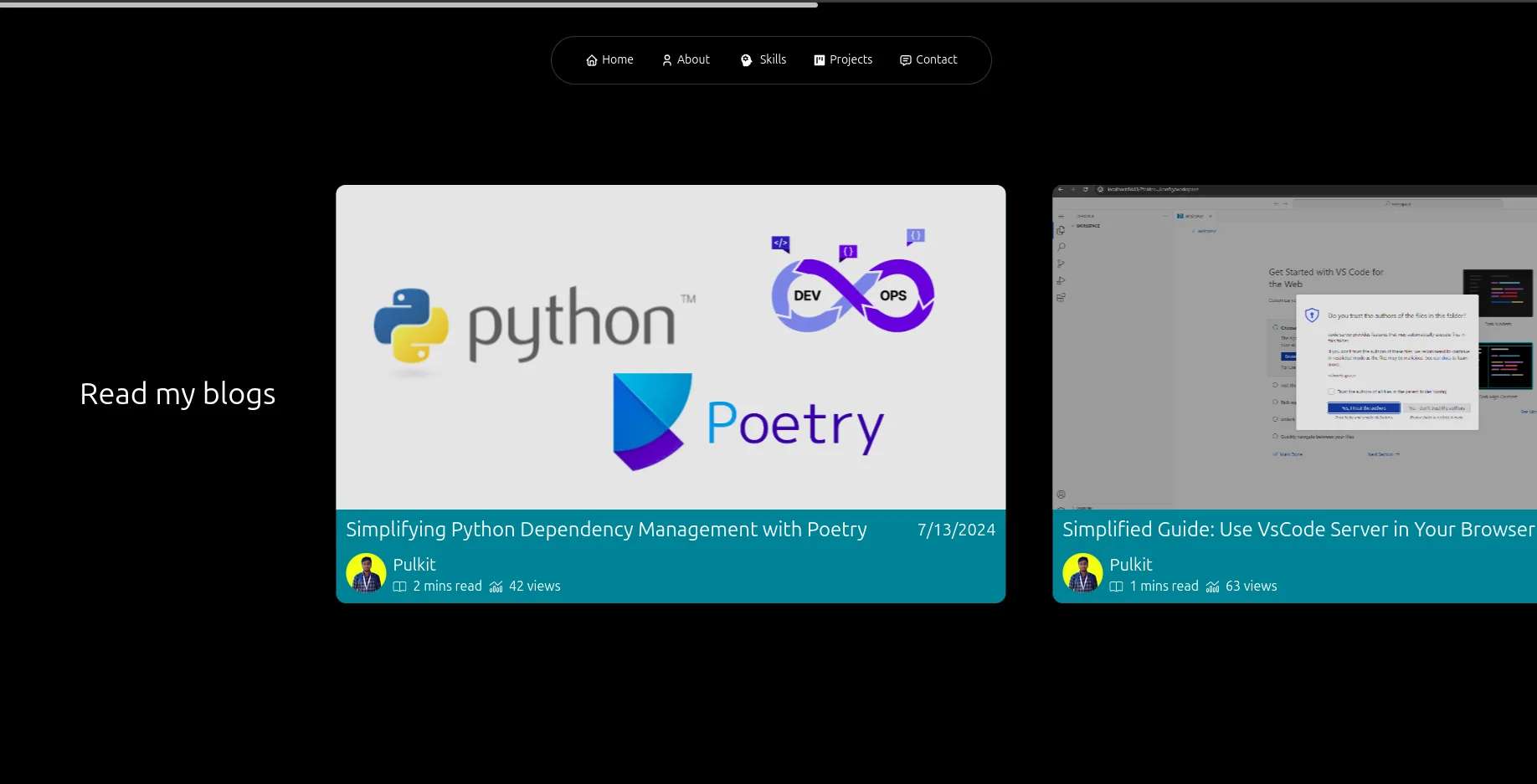
As you can see here, it basically sits at the top of the webpage, and yes, it is as minimalist as it looks.
The Implementation
In this article, we'll implement this using React and Framer Motion.
I have my react project bootstrapped, starting by installing
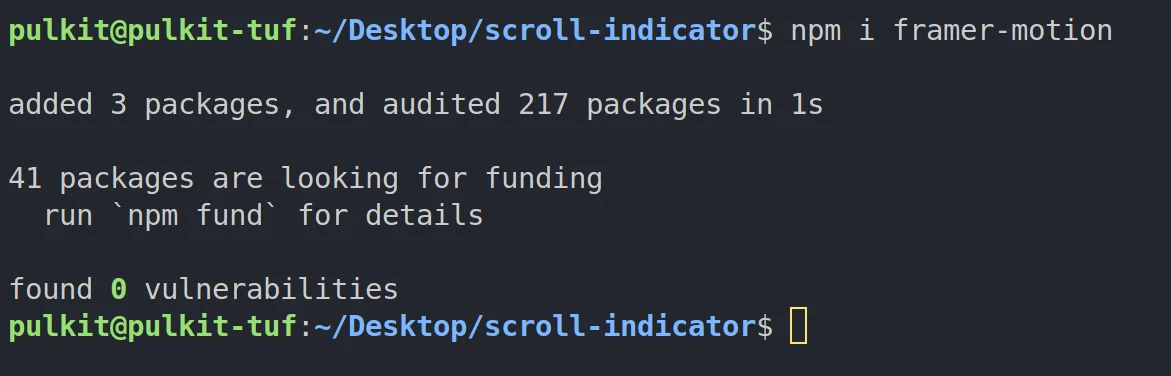
pnpm add framer-motion
To get a good viewport to observe the scroll effect, I am adding a test height.
                  export default function App() {
                    return (
                      <main>
                        <div
                          style={{
                            height: "300vh",
                          }}
                        />
                      </main>
                    );
                  }
Now let's add the main div that's gonna act like the scroll indicator
                  import { motion } from "framer-motion";


                  export default function App() {
                    return (
                      <main>
                        <motion.div
                          style={{
                            position: "fixed",
                            top: 0,
                            left: 0,
                            width: "20vw",
                            height: "10px",
                            backgroundColor: "black",
                            borderRadius: "0 10px 10px 0",
                          }}
                        />
                        <div
                          style={{
                            height: "300vh",
                          }}
                        />
                      </main>
                    );
                  }
You can read more about The <motion /> component, but in a nutshell, it is a component from Framer Motion that allows you to animate elements in a simple and declarative way.
And the styles are simple. The element is fixed at the top left of the screen, with a width of 0 (the main property that will act like a slider) and a height of 10 pixels. It has a black background and rounded corners on the right side.
Now let's animate it to move when we scroll. We'll use the useScroll() hook from framer-motion.
                  import { useScroll } from "framer-motion";


                  const { scrollYProgress } = useScroll();
Now, to animate the changing values received from scrollYProgress, we will use the useTransform hook from framer-motion.
const width = useTransform(scrollYProgress, [0, 1], ["0%", "100%"]);
Here, the width will provide an animated value based on scrollYProgress. As you scroll from the top to the bottom of the page, the width changes from "0%" to "100%". This is done by mapping the scrollYProgress values (which range from 0 to 1) to the corresponding width values.
                  import { motion, useScroll, useTransform } from "framer-motion";


                  export default function App() {
                    const { scrollYProgress } = useScroll();
                    const width = useTransform(scrollYProgress, [0, 1], ["0%", "102%"]);
                    return (
                      <main>
                        <motion.div
                          style={{
                            position: "fixed",
                            top: 0,
                            left: 0,
                            height: "10px",
                            backgroundColor: "black",
                            borderRadius: "0 10px 10px 0",
                            width,
                          }}
                        />
                        <div
                          style={{
                            height: "300vh",
                          }}
                        />
                      </main>
                    );
                  }
So, we use the width as a style prop for the motion.div. And that's pretty much it for animating the scroll indicator.
The Output
Runs codesandbox.io in an embedded frame, which loads third-party code and cookies.
Open on codesandbox.ioLoading the sandbox...
This sandbox could not be loaded.
Open on codesandbox.ioAnd there you have it! You've just created a sleek horizontal scroll percentage indicator with React and Framer Motion. Now your portfolio site is not only functional but also has that extra touch of interactivity. Happy coding, and may your scrolls always be smooth! 🚀✨