Creating Your Own npx Command
 Pulkit
· 1 min read
Creating a personalized command-line tool can be a fun and efficient way to share your details with others. In this article, I'll walk you through how I created npx devpulkit. Whether you're a developer looking to showcase your portfolio or someone who wants to share their contact details effortlessly, this guide will provide you with the steps and insights needed to build your own npx command. Let's dive in!
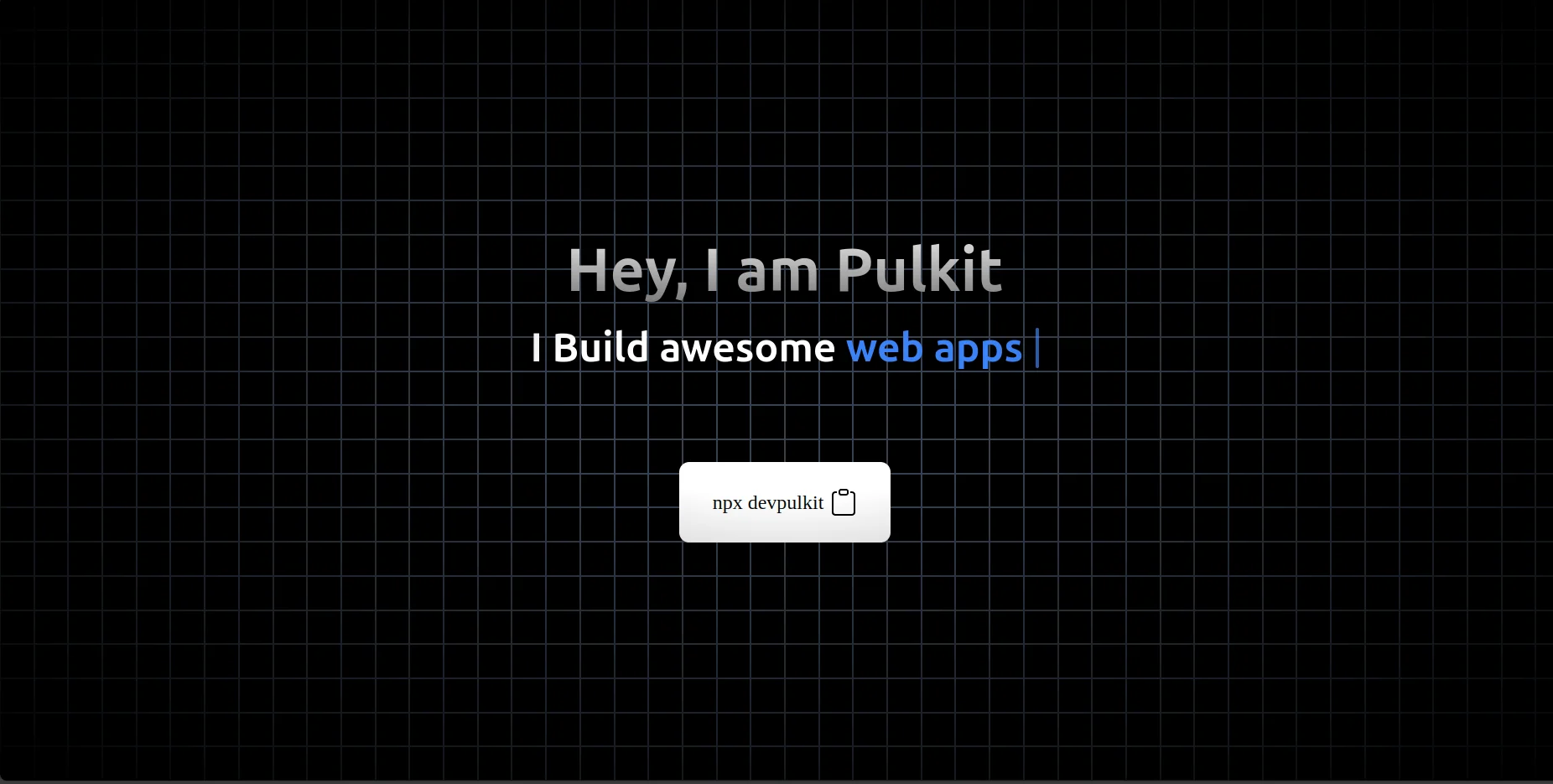
I also added this on my portfolio.
Let's Start
To create your own npx command, follow these steps:
-
Set Up Your Project:
- Create a new directory for your project and navigate into it.
-
Initialize a new Node.js project by running
pnpm init. This will create apackage.jsonfile.{ "name": "bash-script", "version": "1.0.0", "main": "cli.js", "scripts": { "test": "echo \"Error: no test specified\" && exit 1" }, "keywords": [], "author": "", "license": "ISC", "description": "" }
-
Create the Script:
Inside your project directory, create a new file named
cli.js. Inside thecli.jsexplain about yourself/ I chose the js object for thisconst info = { name: "Pulkit", status: "CS student", web: "https://pulkitxm.com", linkedin: "https://www.linkedin.com/in/pulkitxm", gh: "https://github.com/Pulkitxm", twitter: "https://x.com/puulkit", desc: "Passionate about web & app development, MERN stack enthusiast, open-source contributor, and ICPC regionalist.", skills: { langs: ["JavaScript", "TypeScript", "Python"], skills: [ "React", "React Native", "Node.js", "Express.js", "MongoDB", "Git", "Docker", "Networking", ], }, };Now you can simply do a
console.log().console.log(info);To get those colors, we can do this
const greenStr = (str) => `\x1b[32m${str}\x1b[32m`;This functions colorize strings in green using ANSI escape codes. The
\x1b[0mat the end of each function resets the color back to default. Now to get the colorful text logged, we can do thisconsole.log(greenStr(JSON.stringify(info)));So, the final code looks like
console.clear(); console.log("\n\x1b[36m", "Hi I am Pulkit 👋", "\x1b[0m\n");
const greenStr = (str) => `\x1b[32m${str}\x1b[32m`;
                      const info = {
                        name: "Pulkit",
                        status: "CS student",
                        web: "https://pulkitxm.com",
                        linkedin: "https://www.linkedin.com/in/pulkitxm",
                        gh: "https://github.com/Pulkitxm",
                        twitter: "https://x.com/puulkit",
                        desc: "Passionate about web & app development, MERN stack enthusiast, open-source contributor, and ICPC regionalist.",
                        skills: {
                          langs: ["JavaScript", "TypeScript", "Python"],
                          skills: [
                            "React",
                            "React Native",
                            "Node.js",
                            "Express.js",
                            "MongoDB",
                            "Git",
                            "Docker",
                            "Networking",
                          ],
                        },
                      };
console.log(greenStr(JSON.stringify(info, null, 2))); -
Update
package.json:-
Open the
package.jsonfile and add abinfield to specify the command name and the script file. It should look something like this:{ "name": "devpulkit", "version": "0.1.1", "description": "just my intro", "main": "cli.js", "bin": "cli.js", "files": ["cli.js"] }
Now you can publish the package to npm using
npm publish. Once published, you can test your command by runningnpx devpulkitin your terminal. -
Open the
By following these steps, you can create a personalized npx command to share your details effortlessly. I also added this on my portfolio.